
Environment Setup 🌲
Note: If you can install software onto your computer without issue, feel free to skip this step.
- Sign up for github.com if you don’t already have an account.
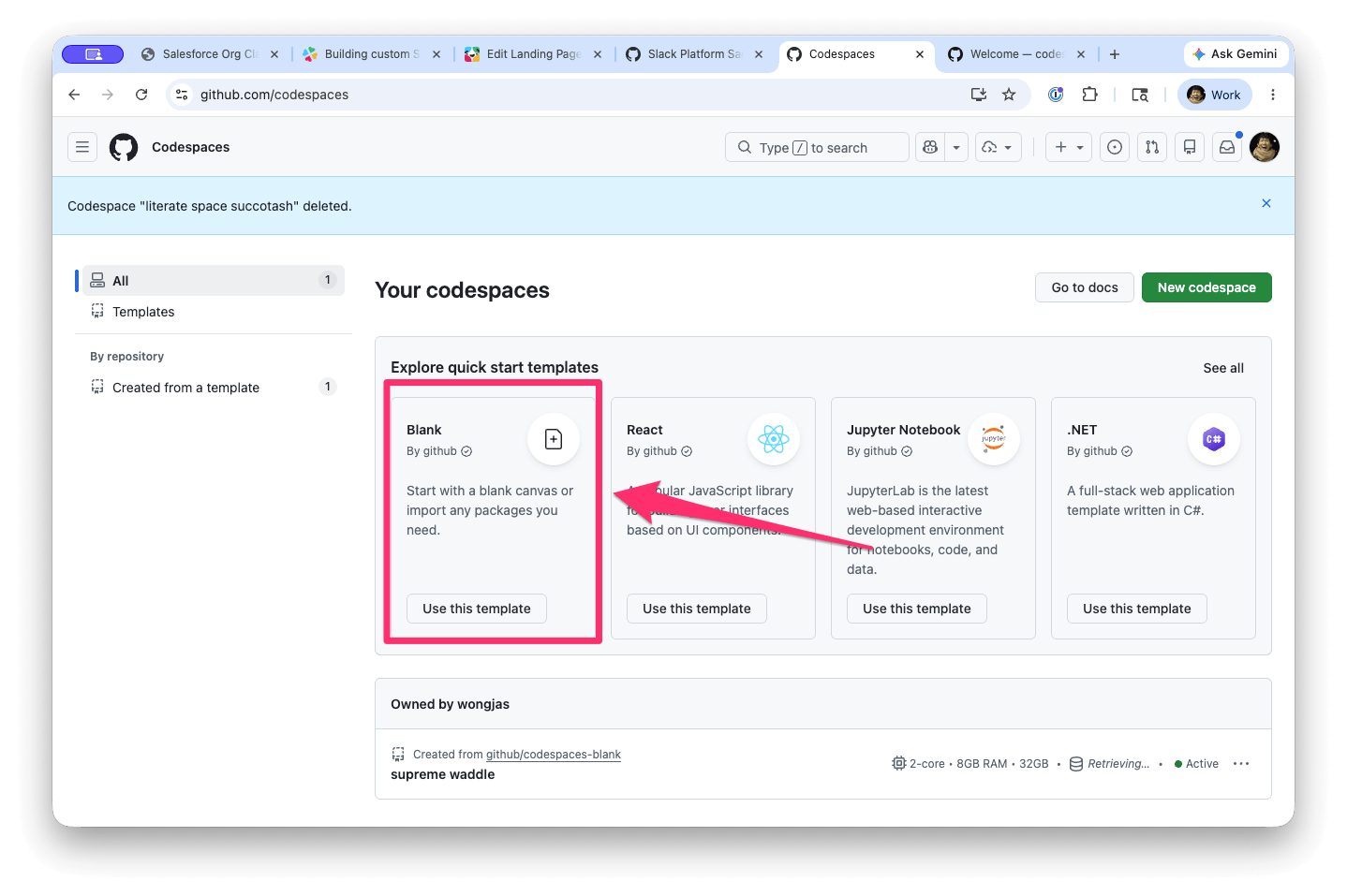
- Initiate a blank codespace on Github.
Join the Developer Program! 🧑🏻💻
- Sign up to the Developer Program to receive your own Enterprise plan developer sandbox. You may need to use a personal e-mail if the creation of sandboxes is blocked by your company.
- Once you’ve signed in, hit Go to Dashboard and then Manage Sandboxes and then Provision Sandbox With Event Code. The event code that you will need is:
KOREA2026. - When entering the domain, choose something that you will remember. This goes for your password as well, as you will be using this to log in to your sandbox in a later step.
- Click on your sandbox and log in with the credentials from above.
Installing and logging into the Slack CLI ✨
- Head to this webpage for Mac and Linux and this page for Windows and follow the prompts to install the Slack CLI for your system. For those using codespaces, use the Mac/Linux version.
- After the Slack CLI has been installed, run the command
slackwithin your command line and take a look at what commands are available to you. - Next type
slack loginso that you can initialize the login process and connect your CLI to your Slack workspace.- Copy the full command and paste it into any text box within Slack
- e.g.
/slackauthticket NmMxNGNlNTasdf20assaJAPWaYtY2Y4MDliODIxZTFh
- e.g.
- Within Slack, confirm the linking of the CLI with your Slack instance and copy the challenge code back to the CLI.
- e.g.
x3CA2BX7G
- e.g.
- Copy the full command and paste it into any text box within Slack
- Success! Your CLI and Slack workspaces are now connected! 🎉
Your first Agent in Slack 🚀
- Use the command
slack create agentand choose the Support Agent, choose your Javascript and then OpenAI Agents SDK and give your app a name. - Once your files have been generated, take a moment to see what the files that you’ve created. In particular the
manifest.json, which houses all of the metadata about your app. - You may need to change the directory
cd your-app. Once you are in the correct location, use theslack runcommand to start your app. Hit Create a new app, choose your team, and then choose All of them. You will eventually see some output, which means that your app is up and running.
- Head into Slack and find your app by using the search bar and typing in your app name.
- Click on the App Home and check out what the base IT Support Agent can do. Click on some buttons, perhaps chat with it as well.
- If you tried chatting with your agent, you will notice that the
OPENAI_API_KEYhas not been set.- In order to do this, ask for an OpenAI key from one of your workshop staffers.
- Within your app code, look for the
.env.samplefile, and place the key after the variable name.- e.g.
OPENAI_API_KEY=sk-proj-1234
- e.g.
- Restart your app by using
CTRL + Cand rerunning the app usingslack run. - Test that you can now chat with your agent
OPEN_API_KEY=sk-proj-12341425214
OPENAI_API_KEY=sk-proj-mVivn_UYdmJYBkpC-asdfasasfasfdsafdsafjidsa;fjsdajfk;sdajfk;dsjakf;jdsak;fjdskal;jflk;dsajfklds;jafkl;dsajfjsdifjdpsijfipdsdf
Choose your own path 🤖
What will your agent do? Let’s take a moment here to think about what this. If you need ideas, take a look at the scenarios below:
- Policy Agent – tells employees about what PTO policies, stock policies etc. that are offered to them as part of their employment.
- Internal Knowledge Agent – Answers questions based on internal wikis, docs and policies.
- Engineering Incident Agent – Guides folks through the creation of an incident, checks dashboards.
- Action Item Extractor – Paste links to messages and the agent gives you nicely formatted tasks.
- Triage Agent (Support / Bug Intake) – Someone reports a bug or request in a channel. Agent asks clarifying questions (severity? steps to reproduce? affected users?) formats it into a structured ticket summary.
- Onboarding Buddy Agent — Guides new hires through their first 30 days: answers FAQs, surfaces relevant docs, and checks in with a daily prompt.
- Standup Summarizer Agent — Collects async standup updates from a channel, synthesizes them into a digest, and posts a daily summary for the whole team.
- Release Notes Drafter Agent — Given a list of merged PRs or Jira tickets, drafts human-readable release notes in a consistent format.
Let's customize even more! 🛠️
Suggested prompts are a good way to give next steps to your users or to onboard users to your app. Let’s customize your suggested prompts to fit your agent. The documentation for this can be found here.
- In the
listeners/events/assistant_thread_started.*file, look for theSUGGESTED_PROMPTSvariable. - Replace the strings there with prompts that your users can use to take next steps.
Good agents provide lightweight progress updates while working on tasks instead of leaving users waiting without context. This feedback improves transparency, sets expectations, and helps users understand that progress is being made. Let’s add it to our agent as well. We’ll need make this change in two places:
- The
listener/events/app_mentioned.jsfile, contains a particular handler that fires when your agent is @mentioned within a channel. Look for orsetStatus.- The first
statusis the text that is shown beside your agent’s avatar, taking the place of a real message. - The
loading_messagesshow up below the chat box, given added context and character to your agent.
- The first
- The second location is within
listener/events/message.jswhich handles the DMs and threads where the agent is a member.- Again, look for
setStatusand make the corresponding changes.
- Again, look for
Thinking steps let your agent show users what it’s doing in real time. As your agent calls tools and reasons through a problem, it surfaces each step as a collapsible task card that updates its status live. This builds trust and keeps users engaged instead of staring at a loading indicator.
Your app already streams responses via sayStream() in listeners/events/message.js. Right now it sends the full response all at once. We will expand this to stream incremental progress as tools execute.
- In
listeners/events/message.js, find wheresayStream()is called. Pass it atask_display_modeargument to enable the plan UI:- a. Set
task_display_modeto'plan'. This tells Slack to render a structured task checklist alongside the response.
- a. Set
- In the same file, find where tools are executed. Before and after each tool call, append a
task_updatechunk to the streamer:- Before executing the tool, append a chunk with
status: 'in_progress'. This shows a spinner next to the task. - After successful execution, append the same
idwithstatus: 'complete'. - If the tool errors, use
status: 'error'and include anoutputfield with the error message.
- Before executing the tool, append a chunk with
- Each
task_updatechunk looks like this:
const sleep = (ms) => new Promise((resolve) => setTimeout(resolve, ms));await streamer.append({
chunks: [{ type: 'task_update', id: 'task-id-1', title: 'Searching knowledge base', status: 'in_progress' }],
});
await sleep(3000); // add time between steps so you can see the transition. 1000 = 1 second
// set status to 'complete' using the same id so Slack updates the correct task card
- Add a
plan_updatechunk to give the overall plan a title that updates as the agent progresses:
await streamer.append({
chunks: [{ type: 'plan_update', title: 'Resolving account access issue' }],
});
- You will notice hardcoded
sleep()delays between steps. These exist so you can visually confirm the task cards are appearing during the demo. The task card UI updates each time you append a chunk, so without a pause betweenin_progressandcomplete, the transition would flash by too fast to observe. Once you wire this up to real tool calls, you can remove the sleep timers. - To test thinking steps, send your agent a message that triggers tool use. Try something like:
“I’m locked out of my account and need a password reset. Can you also check if Jira is down?”
Messages that ask for multiple things tend to produce more visible steps since the agent calls several tools in sequence.
Build your AI logic 🧑🏻💻
Feel free to use AI to help you build this as we don’t have a lot of time during the workshop but build out the rest of your agent as you feel as needed and we will be here to answer questions.