

The Slack Skills Plugin brings Slack development directly into your AI coding tools. Instead of bouncing between docs, Stack Overflow, and trial-and-error, you get guided skills that teach you how to build Slack apps step by step — with validated output at every stage.
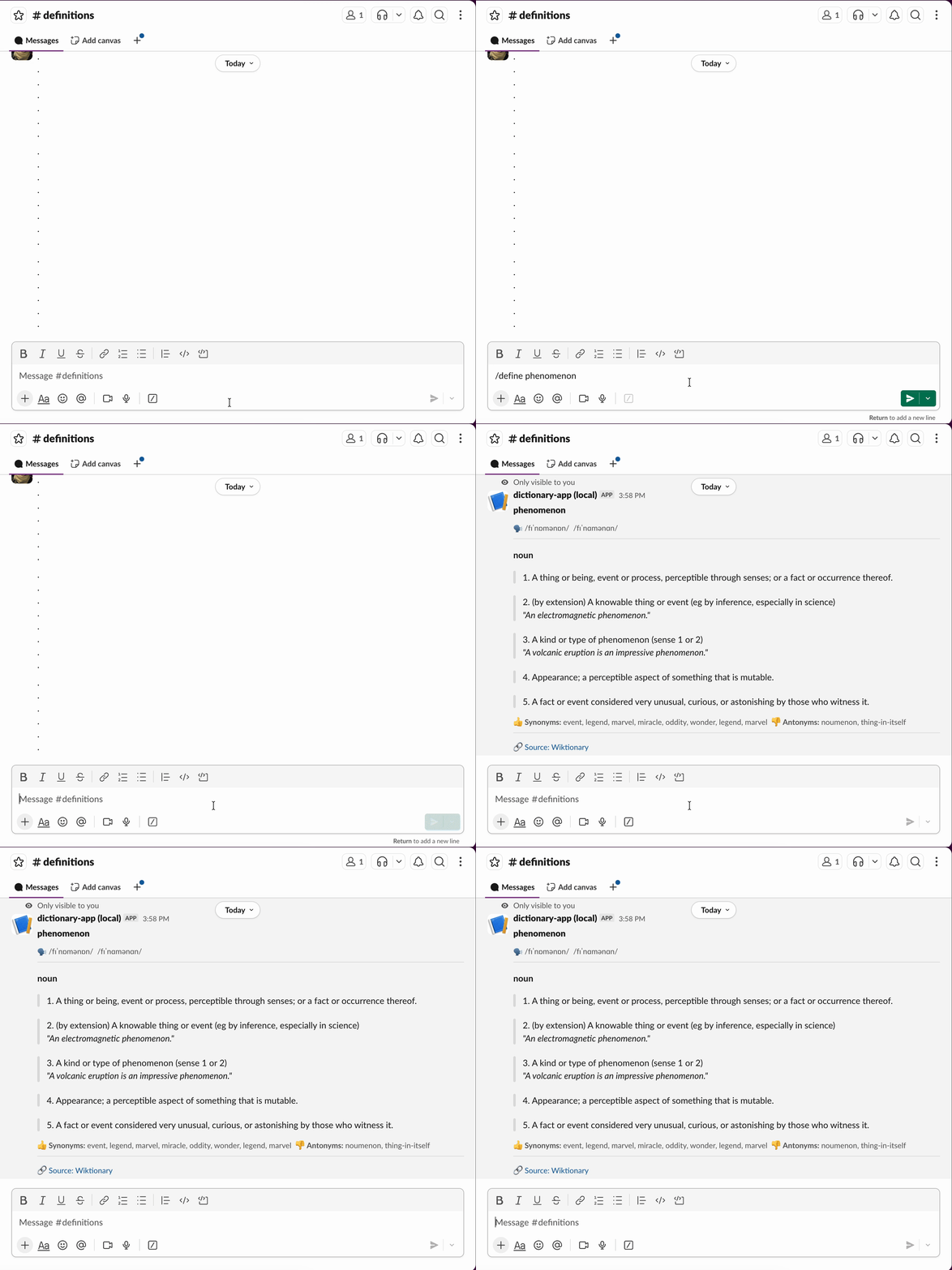
This article walks through building a Dictionary Bot — a slash command that looks up word definitions and displays them in rich Block Kit format. Along the way, you’ll see how each skill in the plugin contributes to the workflow. Here’s what your final app will look like:
Prerequisites
- A sandbox created with the Slack Developer Program. Click on this link and follow the prompts to create one for free!
- The Slack CLI installed locally (for app creation and local development), here’s the guide for Windows and MacOS/Linux
- The latest version of
Python
Installing the Slack Skills Plugin
At the moment, the Slack skills plugin can be installed on Claude Code and Cursor:
Claude Code
Run the following command inside Claude Code:
/plugin install slack@claude-plugins-official
Then reload to activate:
/reload-plugins
That’s it. The MCP server configures automatically, and you’ll authenticate via OAuth the first time you use a Slack tool. You can find more information about the plugin on its Claude page as well.
Cursor
Install directly from the official Cursor Marketplace or use the following command within a Cursor prompt window:
/add-plugin slack
After installation, use the connect button to authenticate to your workspace.
What’s Included
In addition to a number of Slash Commands and a MCP server, you also have six new skills at your disposal, which will come in handy when creating your app today. Skills are structured guides that walk your AI tool through multi-step Slack development tasks:
- slack:create-slack-app — Scaffold a new app from a template
- slack:block-kit — Design and validate Block Kit layouts
- slack:slack-api — Discover and call Web API methods correctly
- slack:slack-cli — Manage your app from the terminal
- slack:slack-messaging — Compose well-formatted messages
- slack:slack-search — Search Slack effectively
So instead of having to worry about the how of creating Slack apps, you can focus directly on what you want.
Tutorial: Build a Dictionary Bot in 3 Prompts (or less)
Here’s a sequence of prompts that will hopefully build a fully-functional dictionary bot. Each prompt builds on the last, and the skills activate automatically based on what you ask. Do note that you may not end up at the exact same result, as AI is non-deterministic but we’ve tried to boil this down into the smallest number of hopefully recreate-able steps. If you’re lucky, you might even create this app in just one prompt!
Prompt 1: Create the App
Help me create a Python Slack app called "dictionary-app" using the starter template. When prompted to install the app on a sandbox, use the --org-workspace-grant=all flag to bypass running the app manually.
Skill used: slack:create-slack-app
The skill walks you through:
- Detecting and verifying the Slack CLI
- Checking your authentication status. If you set up a developer sandbox, the skill should check for it and create your app in the sandbox.
- Scaffolding the project from the starter template on github.
- Installing all the dependencies needed to run the app.
- Running the app locally with
slack run. We added the--org-workspace-grant=allflag as part of the prompt so that you have a smoother experience. Without it, you can still create the app, but you will need to run the app yourself on the terminal.
You’ll end up with a working Bolt Python app running in socket mode, connected to your sandbox workspace.
Prompt 2: Add the Slash Command
Add a /define slash command that uses the requests library to look up word definitions from dictionaryapi.dev and responds with the definition.
Skills used:slack:create-slack-app , slack:slack-api
This single prompt handles:
- Registering the command in
manifest.jsonwith the correct scopes. - Creating the listener that listens for slash command events and calls the dictionary API
- Wiring up the handler in the commands module
Prompt 3: Enhance with Block Kit
Update /define to use Block Kit with: A header showing the word, a context block with phonetics, a divider, a section per part of speech with numbered definitions in blockquotes and example quotes in italics, synonyms and antonyms when available and a source link at the bottom
Skill used:slack:block-kit
The skill is particularly wordy because we want to make sure that the resulting response from the app has all the features that we’re requesting. In my run of this prompt, the final definition in Slack looks like this but your results may vary.
- Checks common patterns for a matching template
- Fetches the live Block Kit docs to confirm component schemas
- Generates the JSON layout
- Validates it against the
blocks.validatemethod — confirming it’s correct before you ship. This is the key differentiator: you get validated JSON, not guesses from training data.
The Final Result
After these 3 prompts, you will have a working /define command that:
- Accepts a word as input
- Fetches the definition from a free dictionary API
- Displays phonetics, parts of speech, numbered definitions with examples, synonyms, antonyms, and a source link.
And just like that, you’re done! 🎉 Try it out within your Slack workspace!
Going Further
Once you’ve built the Dictionary Bot, try extending it:
- Add an App Home tab that shows a “word of the day”
- Add a modal for looking up multiple words at once
- Schedule a daily vocabulary word to a channel
Each extension is a chance to use the skills again and further your knowledge in Slack app development! 🙌
Tips for Using the Skills
- Be specific in your prompts. “Build a Block Kit modal with a rating select and comments field” triggers the
slack:block-kitskill automatically.
- Let
blocks.validatedo the work. Never trust Block Kit JSON that hasn’t been validated — be explicit, if needed, to make sure your LLM uses this method.
- Use
slack:create-slack-appeven if you’ve built apps before. It handles the sandbox, auth, and template selection in one smooth flow.
Resources
- Slack Skills Plugin on GitHub
- Block Kit Builder — Visual editor for previewing layouts
- Slack Developer Program — Get a free sandbox workspace