
Most teams don’t have a tooling problem. They have an access problem.
You’ve likely already built internal APIs, dashboards, or scripts that solve real problems. Maybe you’ve even started exposing them through an MCP server. But even then, those tools often go underused. Not because they aren’t useful, but because they’re not where people are working.
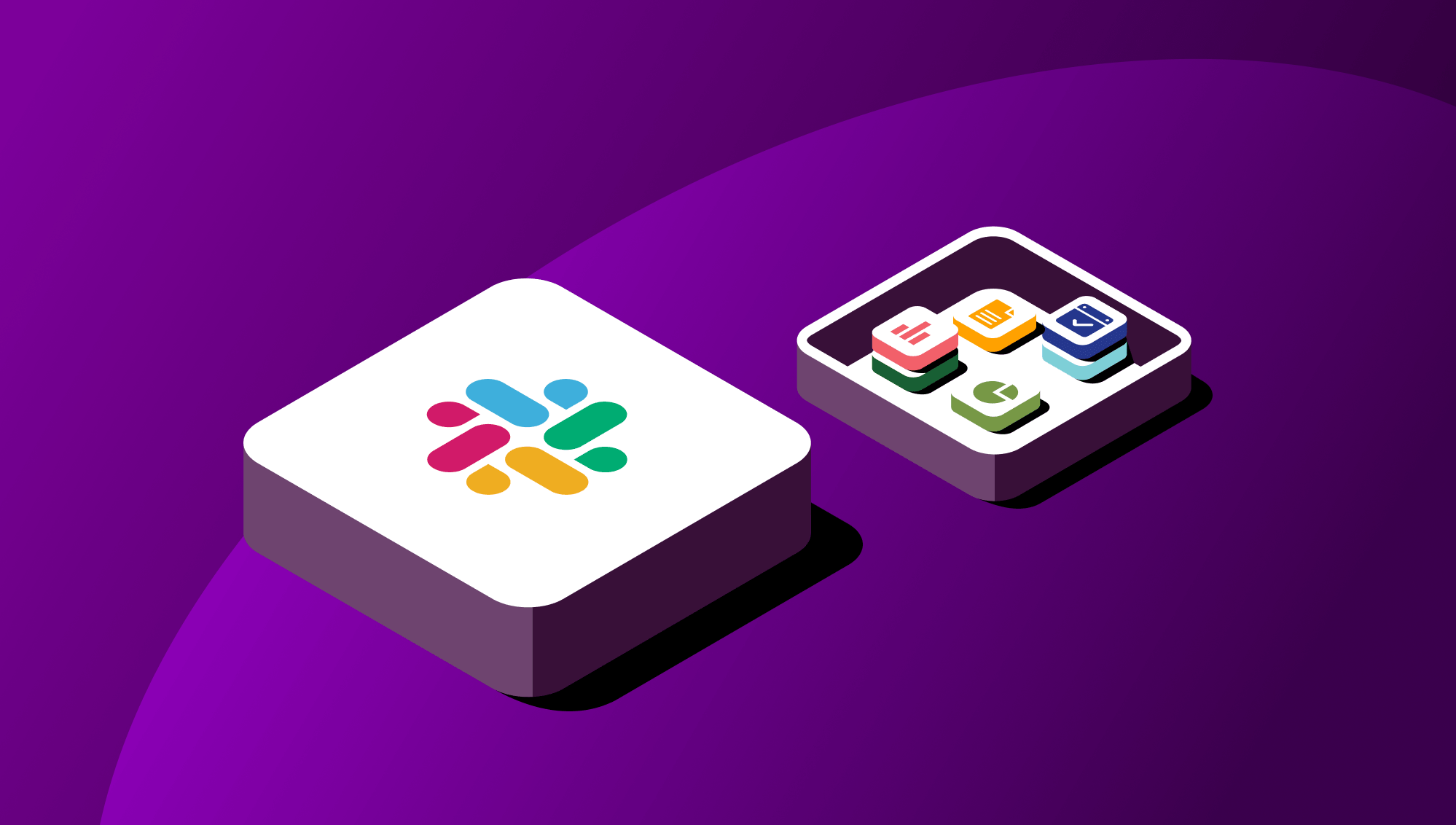
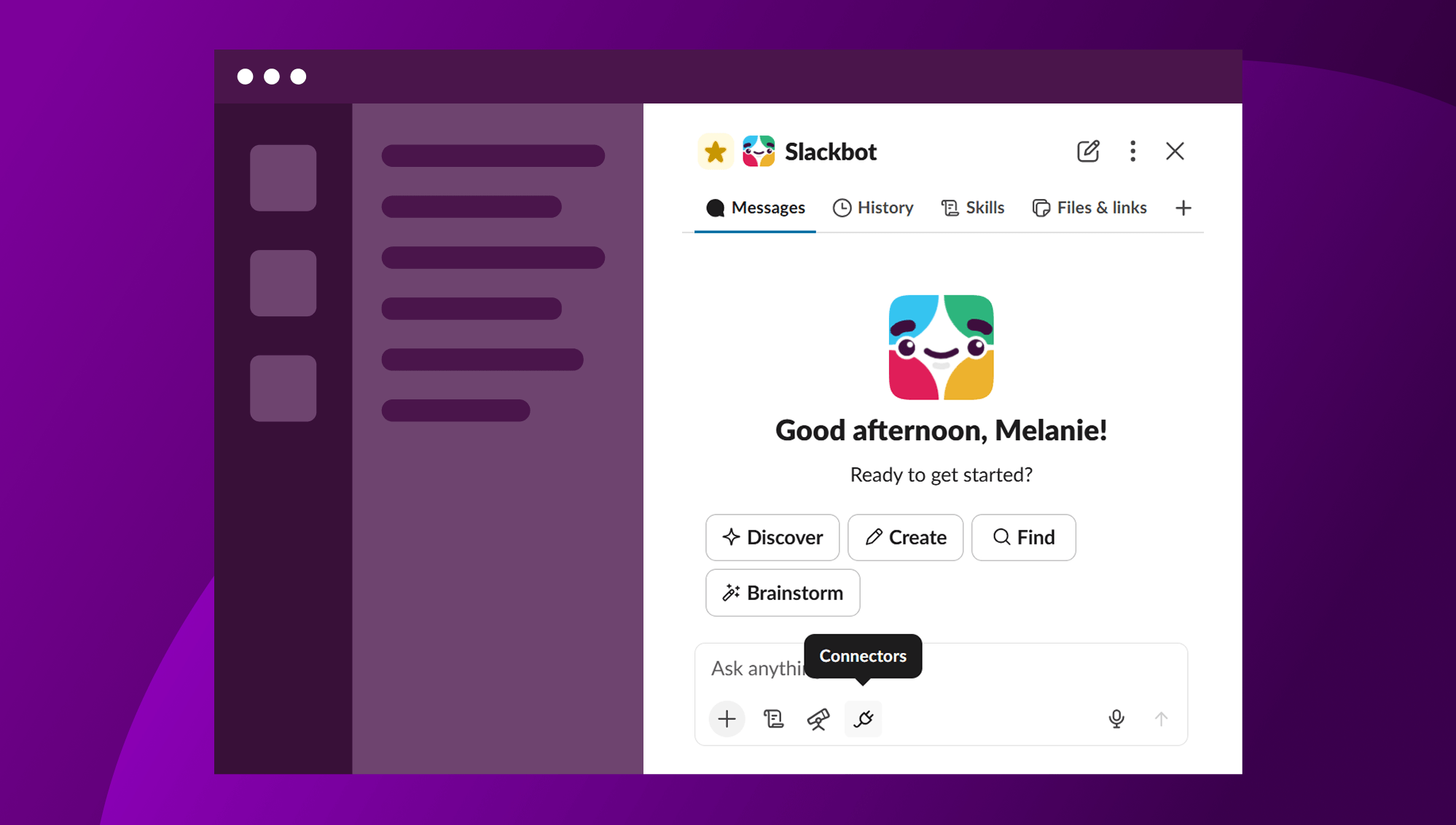
They live behind dashboards, URLs, or CLIs that require context switching. So instead of using them, people ask in Slack. That’s exactly the gap Slackbot’s MCP client is designed to close. With Slack’s MCP client, you can let people easily access your app’s data and information, right in Slack when they use Slackbot. All it takes is adding a few scopes to your Slack app. The capabilities you expose as MCP tools become discoverable to anyone who asks Slackbot for help, without building a new interface or integration layer.
This isn’t about building a new system. It’s about making your tools work where your team already lives, in Slack.
From integrations to capabilities
Before MCP, connecting AI to your infrastructure usually meant building custom integrations for each system. Every new tool required its own API wrapper, its own auth flow, and its own orchestration logic. Over time, maintaining and scaling these integrations becomes increasingly complex, especially as the number of systems grows.
We’ve previously discussed how you can use MCP Server and the RTS API to build context-aware agents. Now you can add the Slackbot MCP Client to your toolbox by replacing the model of brittle connections with seamless integration. Now, instead of integrating systems with each other, you expose capabilities once through a standard protocol. Any MCP client can then discover and use those capabilities. Slackbot is now one of those clients.
If you already have an MCP server, Slackbot becomes just another interface to it. If you don’t, you can still wrap existing APIs or services with a lightweight MCP server and get the same benefit. Either way, you’re not rebuilding your tools, you’re making them accessible.
What this unlocks for developers
The immediate value is less about AI and more about adoption. Your tools become:
- Discoverable: invoked through natural language instead of remembered URLs
- Used more often: because they’re embedded in Slack workflows
- Simpler to maintain: no need for a separate UI or bot logic
Rather than telling someone to open a Datadog dashboard or run a script, they can just ask, “Is the authentication service lagging?” or “What’s the latest incident?”
And Slackbot routes that to your system.
How it actually works
MCP defines three roles:
- Host (Slackbot): where the user interacts
- Client (Slackbot MCP client): translates intent into tool calls
- Server (your MCP server): exposes and executes capabilities
When a user asks a question, Slackbot determines whether one of your tools can answer it. If so, it calls your MCP server, executes the relevant function, and returns the result. All within the conversation.
You don’t need to build that orchestration layer. You just define what your tools can do.
From zero to working in a few steps
The implementation is intentionally minimal, especially if you already have an MCP server. At a high level, you’re doing three things:
- Exposing your service via an MCP server
- Giving your Slack app permission to connect
- Registering your server so Slackbot can discover it
That’s it.
Step 1: Expose your app (MCP server)
If you don’t already have one, you’ll need to expose your service through an MCP server.
MCP servers are not Slack-specific—they’re part of the open Model Context Protocol ecosystem. You can use existing libraries like FastMCP (Python) or other MCP-compatible frameworks to wrap your APIs, databases, or services.
For example, using FastMCP in Python:
from mcp.server.fastmcp import FastMCP

mcp = FastMCP("Production Data Service")

@mcp.tool()
def get_system_status(service_name: str) -> str:
    """Get the current operational status of a core service."""
    # Replace with real logic (DB, monitoring API, etc.)
    return f"{service_name} is running optimally. Latency is 42ms."
This defines an MCP tool that Slackbot (or any MCP client) can discover and invoke.
Step 2: Update (or create) your Slack app
You don’t need a new app unless you want one. You can add this to an existing Slack app. Add the required bot scope: mcp:connect. This allows Slackbot to connect to your MCP server.
Step 3: Register your MCP server
In your app configuration (manifest or settings), add your MCP server:
{
  "mcpServers": {
    "internal-monitor": {
      "command": "uv",
      "args": ["run", "monitor_server.py"]
    }
  }
}
This can point to:
- A local process
- A service running in your VPC
- A hosted HTTPS endpoint
You’ll also configure authentication depending on your setup.
What happens next
Once connected, there’s no extra wiring. Slackbot will:
- Discover the tools exposed by your MCP server
- Decide when to use them based on user queries
- Call them and return results in context
So when someone asks: “Is the auth service down?” Slackbot can invoke the get_system_status tool automatically and respond with the result. No commands, no UI, no manual routing.
“Integrating Rovo with Slackbot’s MCP client was remarkably seamless. Our teams had it up and running in a matter of hours, not weeks. What it unlocks for our customers is genuinely transformative: Jira issues, Confluence pages, and project context surface right inside Slack conversations, eliminating the constant context-switching that slows teams down.”
— Ibraheem Osama, Principal Software Engineer, Atlassian
Security and control
Your MCP server runs in your infrastructure, and you control what it exposes. Slack handles:
- Authentication and OAuth flows
- Access control via app permissions
- Admin approval through existing Slack workflows
You’re not exposing raw data. You’re exposing controlled capabilities.
A small change with a big impact
The biggest shift here isn’t technical, it’s behavioral. Instead of building tools people have to remember to use, you make them available where questions already happen.
If you’re deciding what to connect first, start with anything people frequently ask for:
- System status and incident data
- Customer or account lookups
- Internal knowledge or runbooks
These are the highest-leverage use cases because they benefit most from being one question away.
For more resources on MCP Client, check out the docs on connecting a MCP Server to the Slackbot MCP Client. If you’re new to both MCP Server and the Slackbot MCP Client, we have a sample app to get you started.