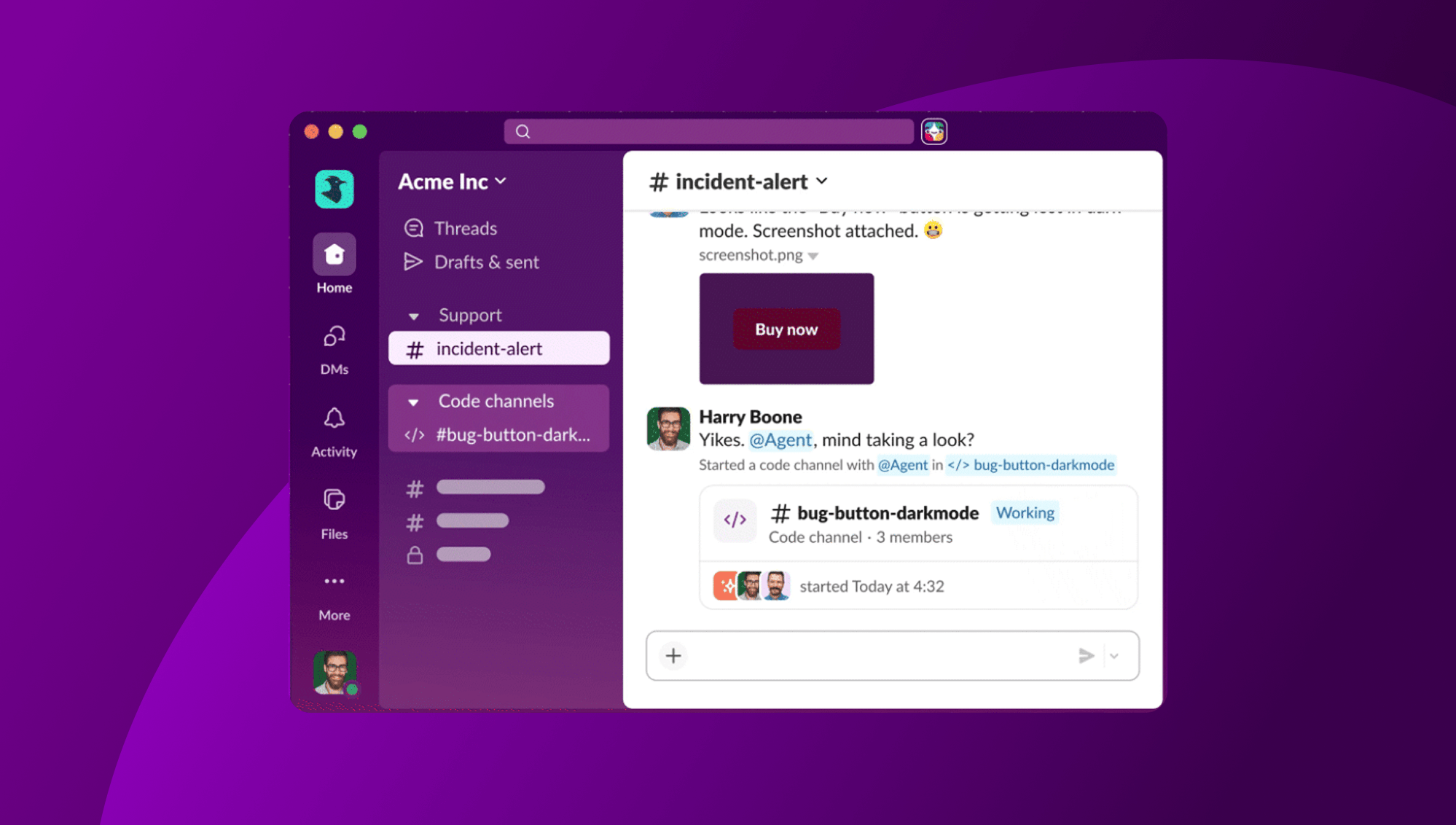

Some agent tasks need more than a reply. A coding agent might need to investigate a bug, implement a change, share a diff, and work through feedback with teammates. Slack Code gives that work a dedicated channel where your agent and your team can collaborate from the first request to the finished result.
In our Slack Code announcement, we introduced the experience and what it makes possible. Now, let’s build it. You’ll use the Slack Code APIs to create a code channel from an existing conversation, share progress and artifacts, handle incoming messages, and wrap up when the task is complete.
Start with the conversation
The work often starts with an @mention. Someone asks your agent to investigate an issue or implement a feature in a channel, and your app receives an app_mention event. Your app can decide whether the request calls for a dedicated code channel or a reply in the original conversation.
First, enable code channels in your app manifest:
features:
  code_channels:
  enabled: true
Next, add the OAuth scopes your agent needs:
oauth_config:
  scopes:
    bot:
      - code_channels:manage
      - app_mentions:read
      - chat:write
      - channels:history
If your agent also needs to receive messages from private channels, include groups:history. The agents.conversations.* methods use code_channels:manage, while the agents.sessions.* methods use chat:write.
With the manifest configured and the required scopes in place, your app can create a code channel when a request calls for more involved work.
Create a code channel and carry the context forward
Use agents.conversations.create to create a code channel from the conversation that started the task:
await client.agents.conversations.create({
  name: "add-dark-mode",
  session_id: sessionId,
  origin_channel_id: channelId,
  origin_message_ts: messageTs
});
The origin_channel_id and origin_message_ts link the new code channel to the message that started the task. Slack unfurls the code channel directly in the original conversation, so teammates can find the session and follow its progress. Slack also automatically invites the author of the original message to the new channel, so your app doesn’t need to handle that invitation itself.
Once the channel is created, your agent has a dedicated place to collaborate with teammates, share updates, and publish the work as it develops.
Show progress and keep the task in context
A little visibility goes a long way when an agent is working through a multi-step task. Use agents.sessions.setStatus to update the session status:
await client.agents.sessions.setStatus({
  channel_id: codeChannelId,
  status: "processing"
});
You can also use agents.conversations.setProperties to populate the context bar with useful bookmarks, such as the repository, branch, or pull request associated with the task. Use agents.sessions.rename to give the session a more descriptive name as the work takes shape.
Together, these details help teammates understand what the agent is working on and find the resources they need without digging through the conversation.
Give your agent’s work a place to live
The work itself deserves more than a final text response. Slack Code lets your agent publish tabs in the code channel, so teammates can inspect changes, explore previews, and interact with the results as the task progresses.
Use agents.conversations.setView to create or update a view. For example, you can publish a unified diff that shows exactly what changed:
await client.agents.conversations.setView({
  channel_id: codeChannelId,
  type: "diff",
  content: unifiedDiffText, // Output of git diff
  base_branch: "main",
  head_branch: "feat/dark-mode"
});
The content should use standard unified diff format, such as the output of diff –git. The branch names appear as labels in the diff header, helping reviewers understand the change they’re looking at. For diff views, each channel supports a single diff view.
For non-diff views, use a stable view_key to identify the content. The first call creates the tab, and subsequent calls with the same key update it in place.
When using view_key, the first call creates the tab, and subsequent calls using the same key update it in place:
await client.agents.conversations.setView({
  channel_id: codeChannelId,
  view_key: "reports/coverage.html",
  name: "Coverage",
  type: "html",
  content: "<!doctype html><html>…</html>",
  csp: {
    resource_domains: ["https://cdn.jsdelivr.net"]
  }
});
This gives your agent a way to keep a report or preview current as the task evolves, rather than creating a new tab every time the content changes.
You can use HTML, diffs, Block Kit, and canvases as types of views. Interactive elements in a Block Kit view work through your app’s configured interactivity endpoint, just as they do in messages.
Canvases are useful for longer-form notes and collaborative documentation. You can give teammates comment access while your agent remains the author, then use agents.conversations.setCanvasContent to update the content while preserving comment anchors. If your app needs to restore its view state after a restart, agents.conversations.listViews and agents.conversations.removeView let you list and remove the tabs attached to a channel.
Keep the conversation going
Creating the channel is just the beginning. Teammates may ask follow-up questions, add context, or mention your agent while reviewing the work, so your app needs to handle messages in code channels too.
If your app already subscribes to message.channels or message.groups, it will also receive messages from code channels. If you’d prefer to subscribe specifically to messages from code channels and agent session threads, use the message.session event type.
Your app can also receive app_mention events in code channels it didn’t create. This might happen when someone starts a code channel directly from Slack’s UI. To identify these channels, call conversations.info and check whether properties.record_channel.record_type is agent_channel.
That way, your agent can participate in a session even when someone else initiated it, keeping the experience connected to the way your team already works in Slack.
Wrap up the session
When the task is complete, your agent can post a final summary and archive the code channel. Pass the timestamp of that summary message to agents.conversations.archive so it remains discoverable as the session’s summary:
await client.agents.conversations.archive({
  channel_id: codeChannelId,
  summary_message_ts: summaryTs
});
Archiving marks the end of the active session, but the work doesn’t disappear. The channel and its history remain viewable and searchable, and the channel can be reopened if the team needs to revisit it.
Build your next agent workflow
Slack Code gives your agent the building blocks to manage a task from the first mention through the final summary: create a dedicated channel, keep teammates informed, share useful artifacts, respond as the work evolves, and archive the session when it’s done.
Start with the Slack Code developer guide for the full workflow, and explore the agents.conversations.setView API reference to learn more about publishing views in code channels.