Automate a team Stand Up meeting with Workflow Builder
A Stand Up meeting is a short, daily check-in to discuss progress and identify blockers. Traditionally held in person or over a call, these meetings have evolved in today’s remote-first world—where asynchronous updates often work better for distributed teams. Let’s create a Stand Up workflow to streamline this process and ensure consistency. Plus, we’ll store all the updates in a Google Sheet, because you never know when you’ll need to recall what Becky was working on 248 days ago (or why).
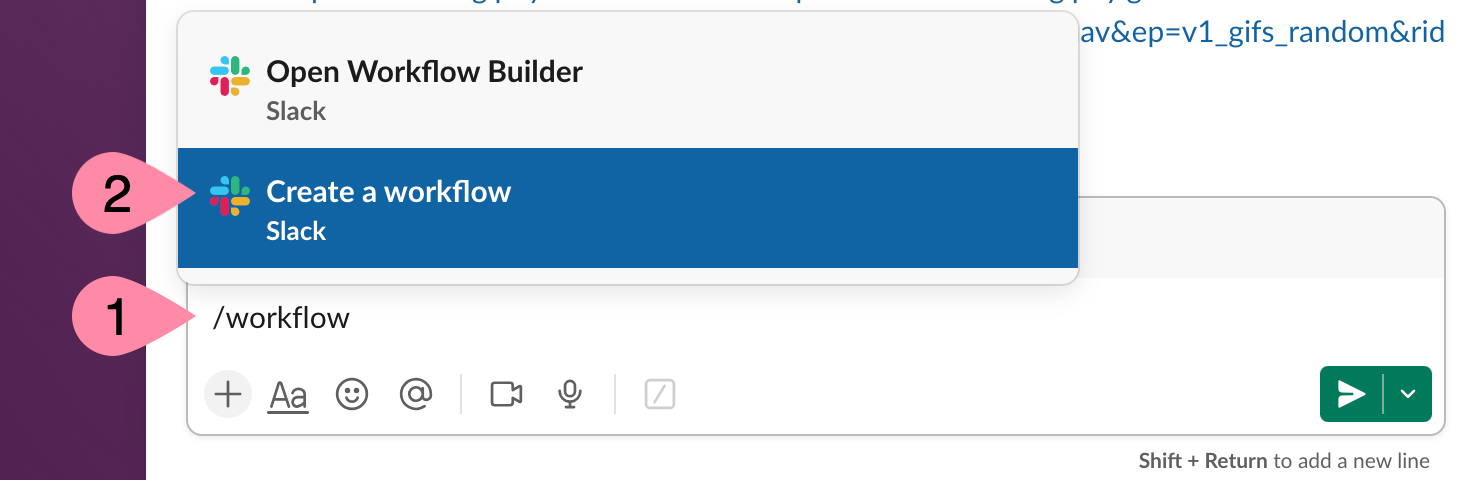
To create a new workflow, you will need to open Workflow Builder in Slack. You can open Workflow Builder using one of the following methods.
Option 1: Use the message box
In any channel, write: /workflow and select Create a new workflow
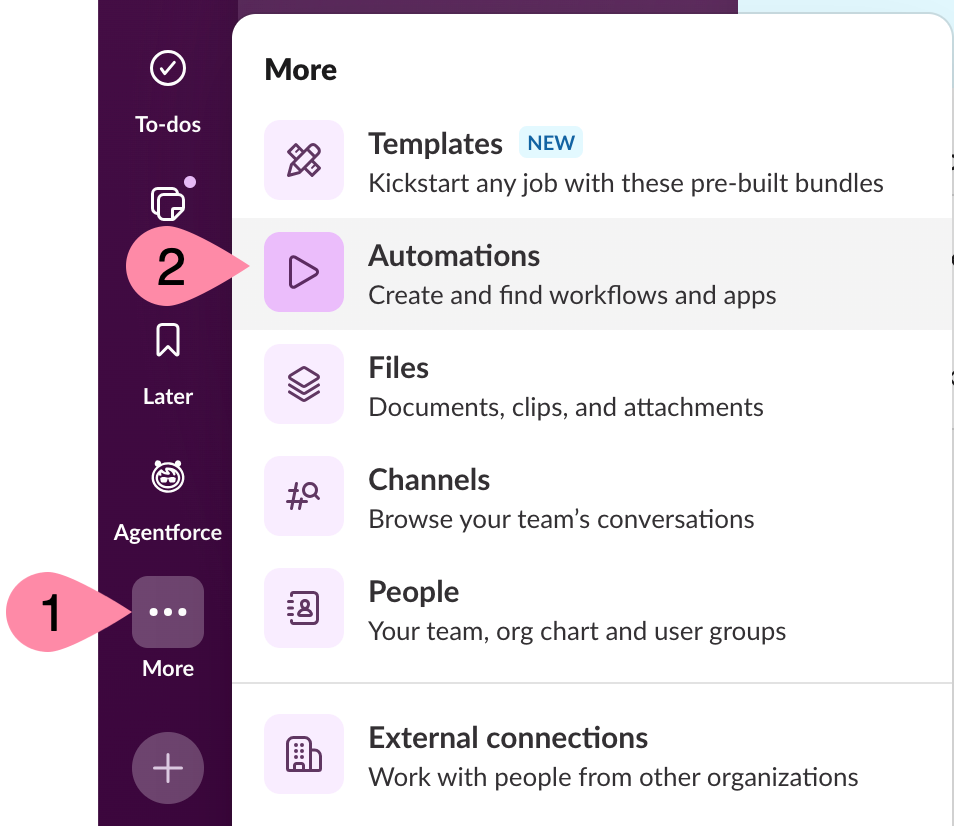
Option 2: Use the sidebar
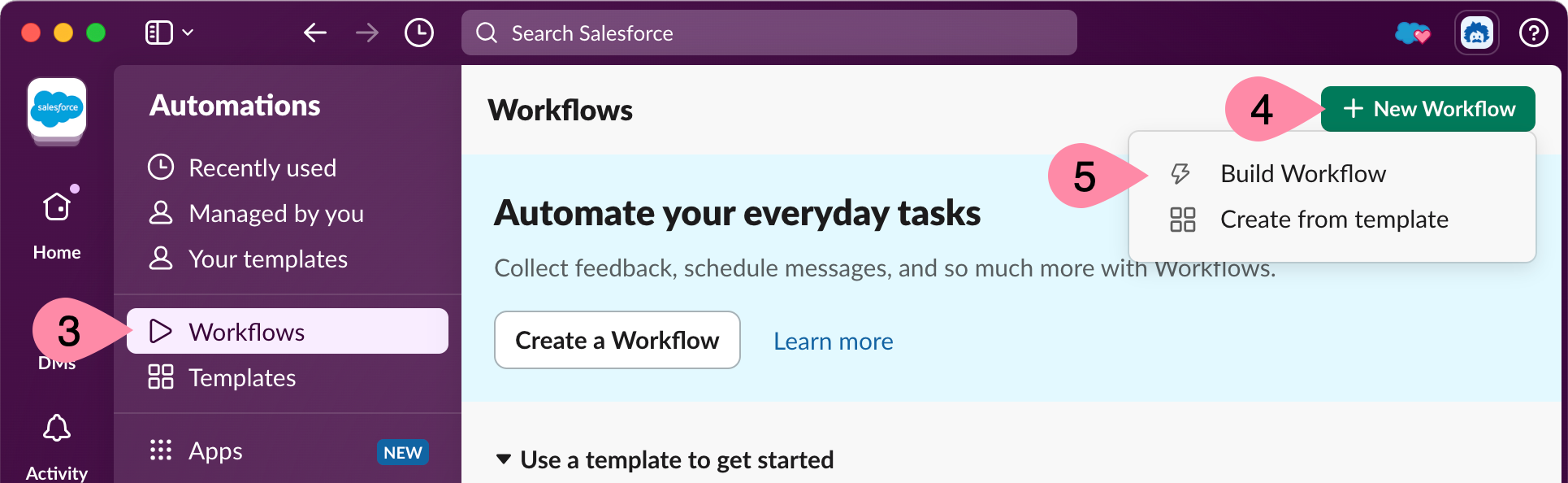
- Navigate to the left sidebar and click More > Automations > Workflows
- Click +New Workflow > Build Workflow
Every workflow starts with a trigger. For this workflow, it may make sense to have it scheduled for each work day at a specific time. However, for testing, it’s easier to start with a link you can copy and paste into a channel.
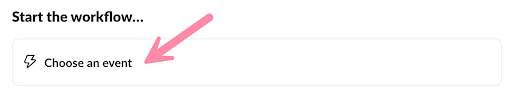
- Under Start the workflow… click Choose an event
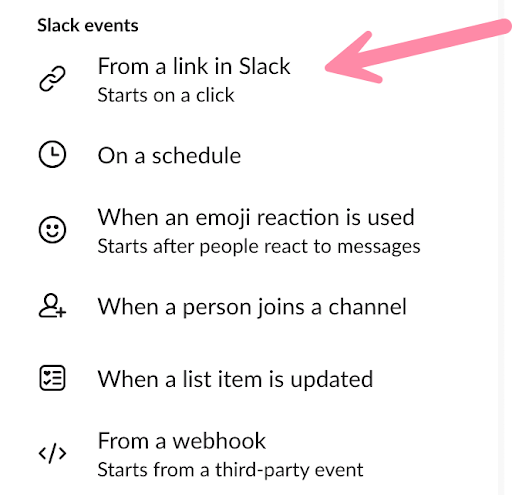
2. Click From a link in Slack
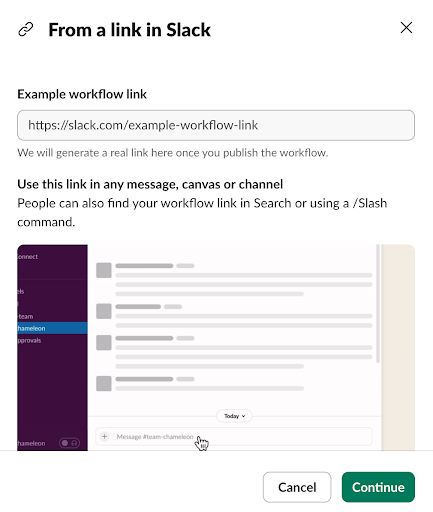
3. Click Continue
When a team member kicks off the workflow, the next step is to gather their current work status. We’ll use a form to capture their updates. A form can collect many different types of input, including short answers (one to two sentences), formatted text (rich text composer), choosing from a list of values (dropdown), dates, and many more.
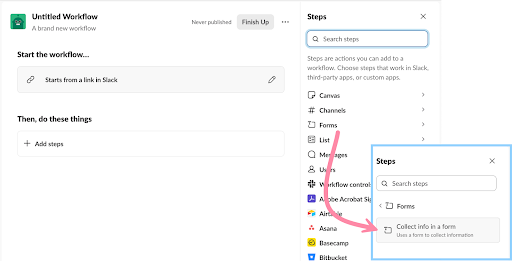
- Under the list of available steps, select Forms and then click Collect info in a form
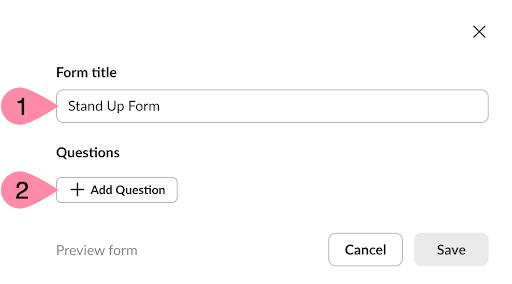
- Change the Form title to “Stand Up Form” and then click + Add Question
- Update Question 1 with the following:
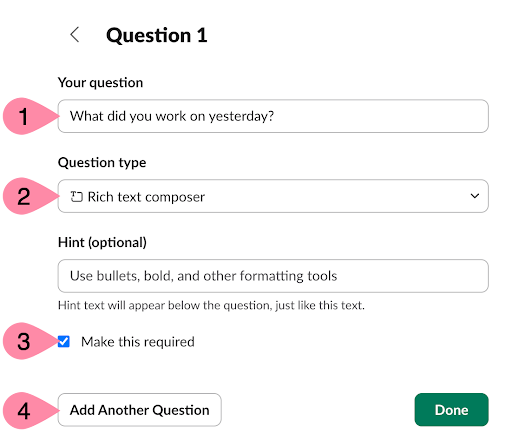
- Update Your question to “What did you work on yesterday?”
- Change the Question type to Rich text composer
- Make sure Make this required is checked
- Click Add Another Question
- Update Question 2 with the following:
- Update Your question to “What will you work on today?”
- Change the Question type to Rich text composer
- Make sure Make this required is checked
- Click Add Another Question
- Update Question 3 with the following:
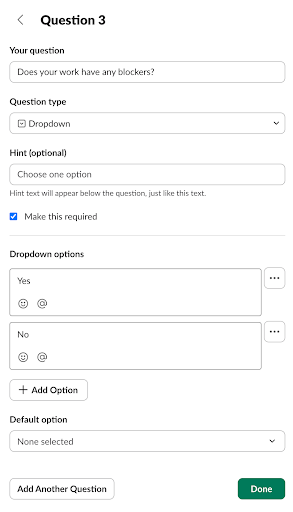
- Update Your question to “Does your work have any blockers?”
- Change the Question type to Dropdown
- Make sure Make this required is checked
- Update List item 1 to “Yes” and click + Add Option
- Update List item 2 to “No”
- Click Add Another Question
- Update Question 4 with the following:
- Update Your question to “What is your estimated date of completion for this task?”
- Change the Question type to Date
- Uncheck Make this required (optional question)
- Click Add Another Question
After the values are saved to the spreadsheet, your workflow will post the information to the channel where the workflow was used.
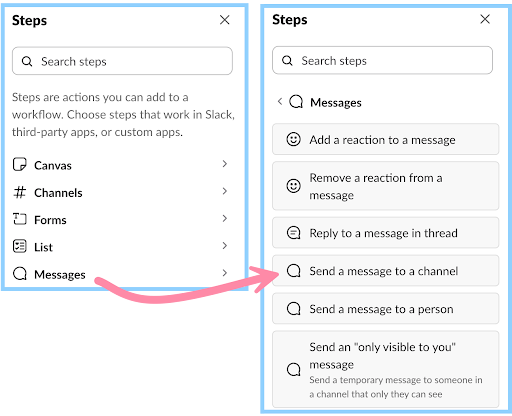
- Under Steps click on Messages, then click Send a message to a channel
2. Under Select a channel, ensure that Channel where the workflow was used is selected
3. Click {} Insert a variable and click Person who submitted the form
4. Click {} Insert a variable again and click Insert all form responses
5. Modify the first line in Add a message text box value to read, “ {} Person who submitted the form sent their Stand Up check in ” (feel free to customize)
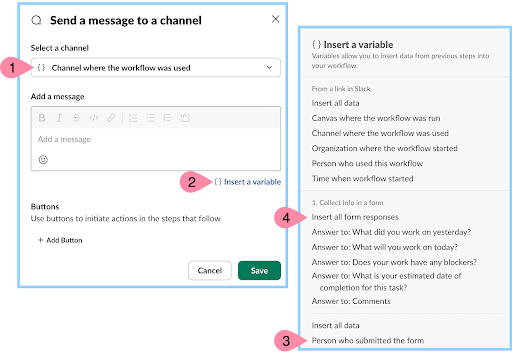
6. Click Save
Next, we’ll make this workflow available in your workspace. But first, give it a name that’s so clear, even your coffee-deprived teammate at 8 a.m. will know exactly what it’s for.
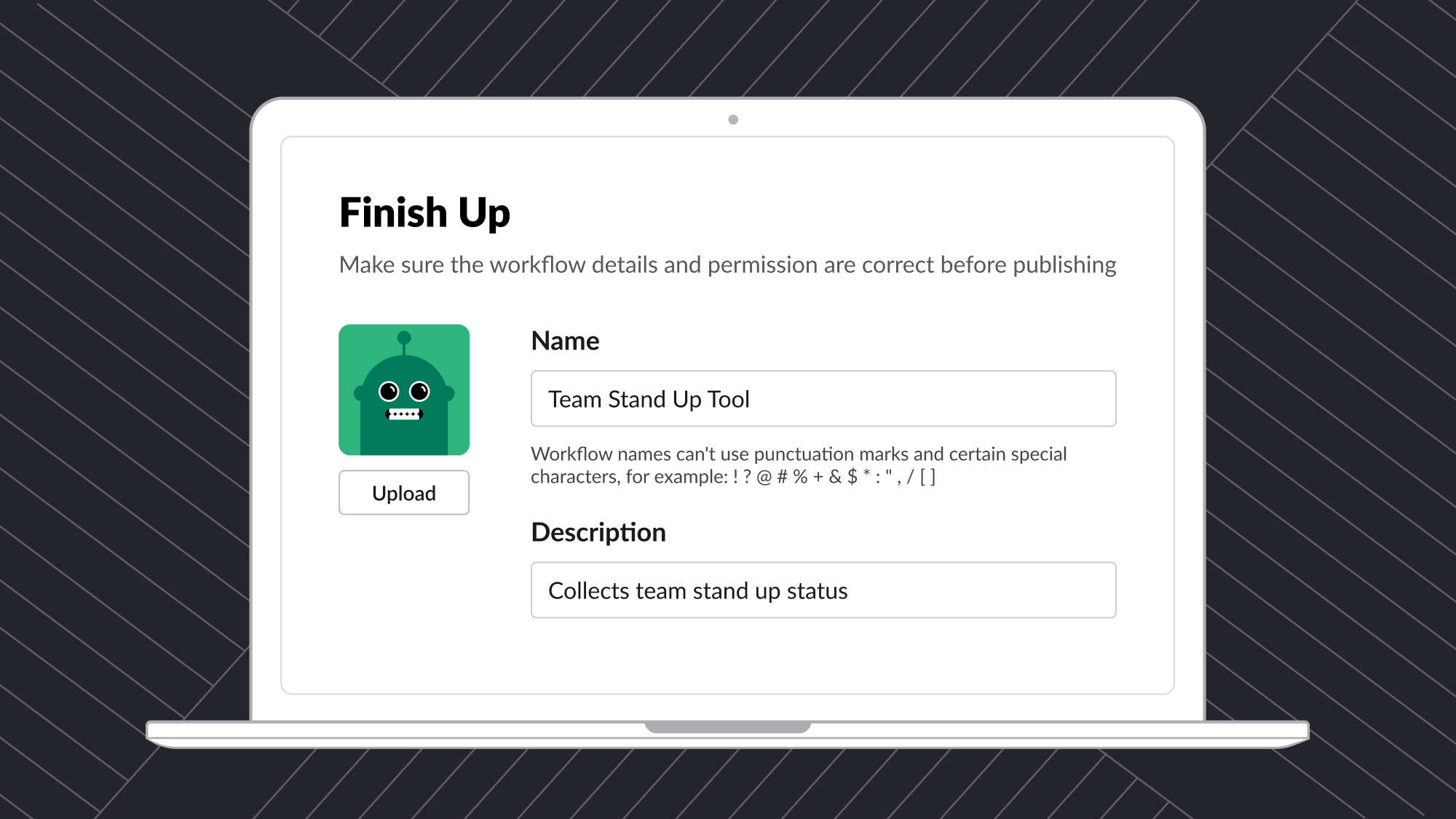
- Click Finish Up
- Change the Name to “Team Stand Up Tool” and change the Description to, “Collects team stand up status”
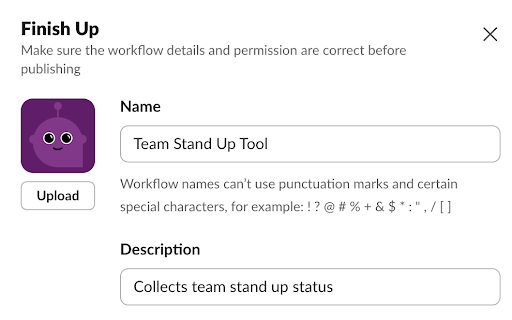
- Click Publish
The last step is to test your new Team Stand Up workflow!
- Click Copy Link and click Done
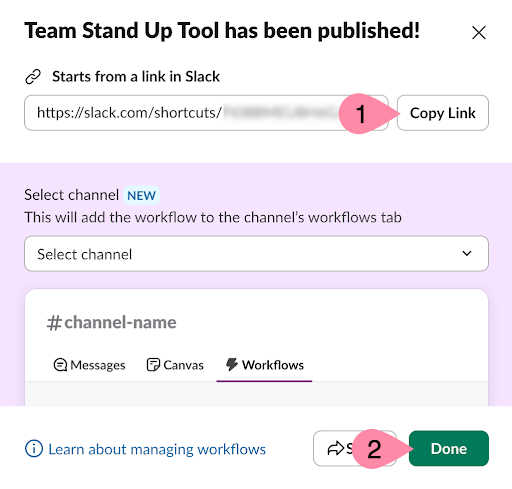
- Go to your team’s channel (or your personal DM) and paste the link
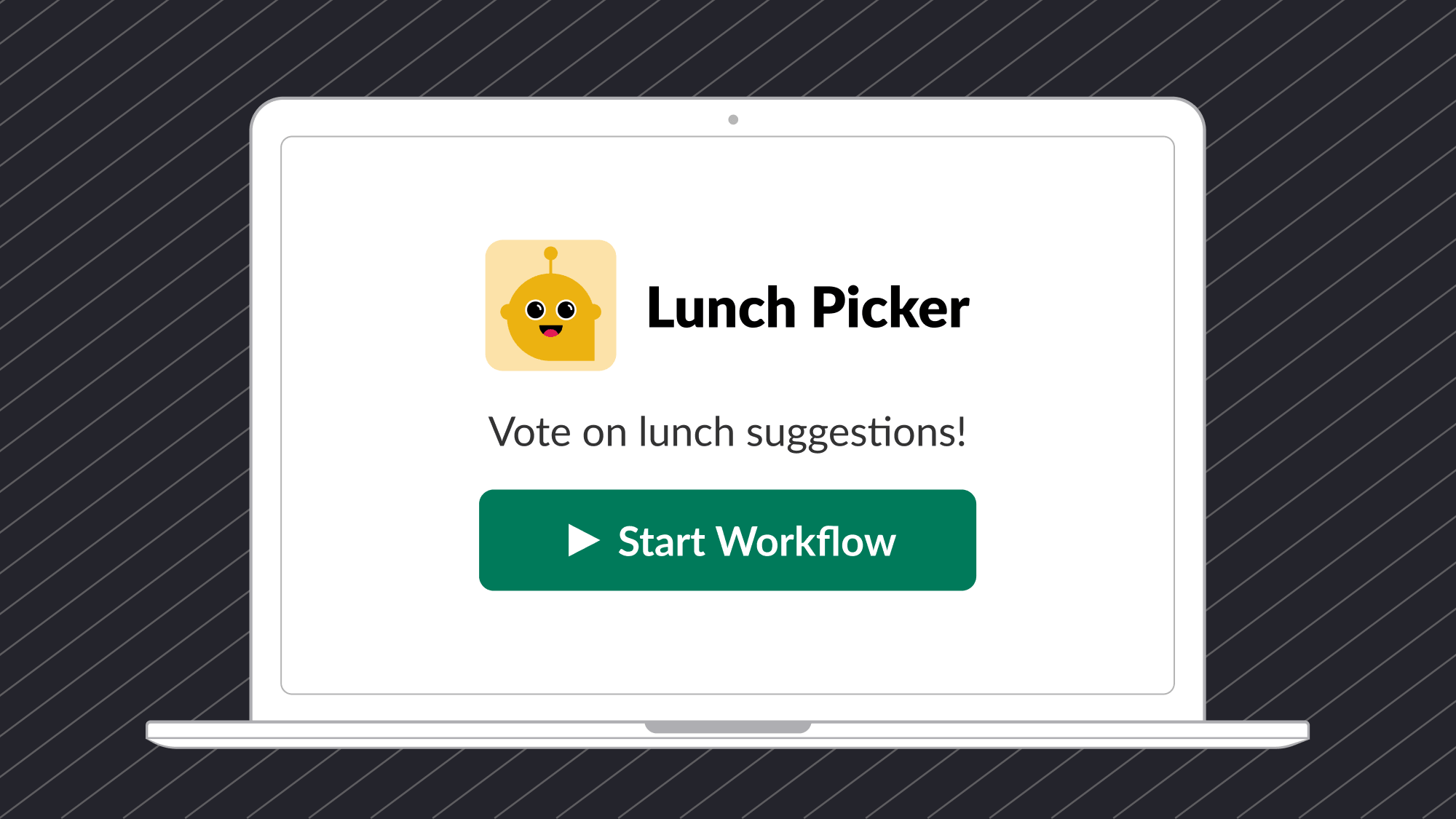
- Click Start Workflow
- Complete the form and click Submit
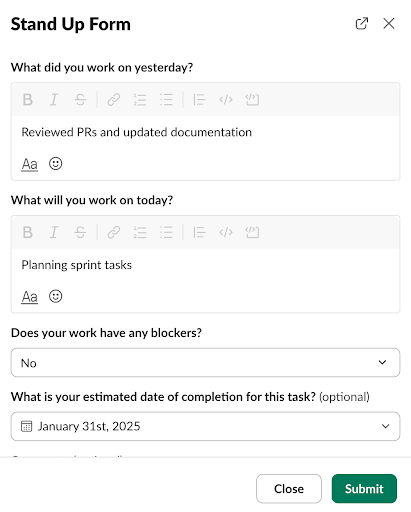
- Verify the form responses have been published in the channel and saved to the spreadsheet
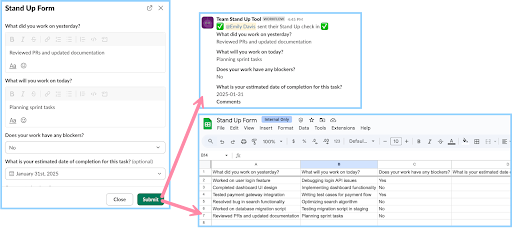
Now that we’ve tested and verified the workflow, uh… works, let’s schedule it so it appears in the team’s channel every day at a specific time.
Once a workflow has been published, the type of trigger that starts the workflow cannot be changed. So, we will need to duplicate the workflow and edit the copy instead.
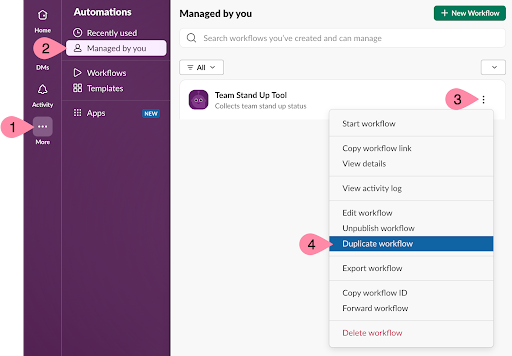
- Click the More button in the left navigation bar and click Automations
- Click Managed by you
- Next to the Team Stand Up Tool click the three dots and choose Duplicate workflow
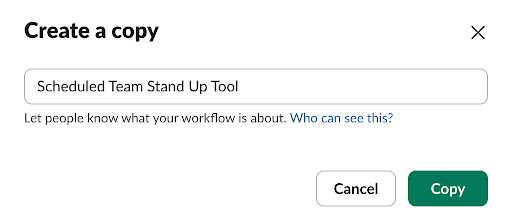
- Give the new workflow a unique name such as “Scheduled Team Stand Up Tool” and click Copy
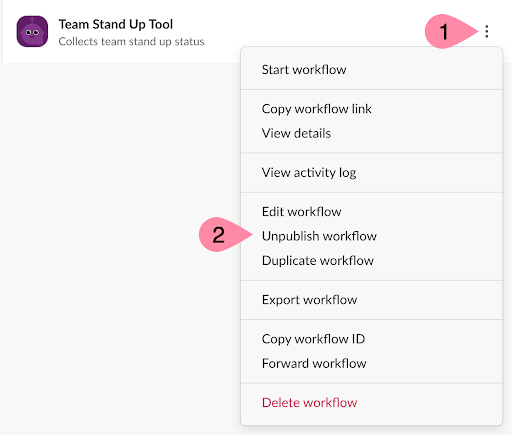
- (Optional) To avoid potential confusion, click the three dots next to the original workflow and click Unpublish workflow
- Next to the new workflow click the Edit workflow icon

- Under Start the workflow… click the Edit icon

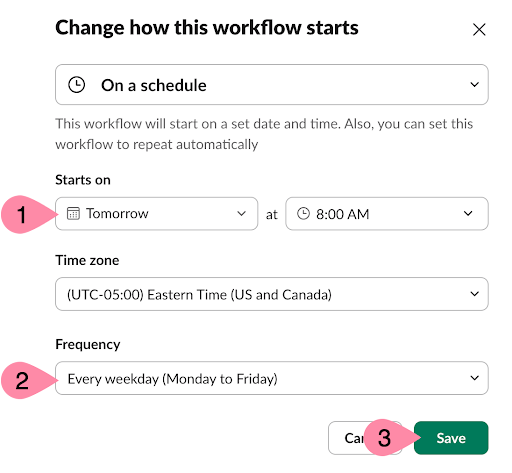
- Click the drop down that currently reads From a link in Slack and select On a schedule
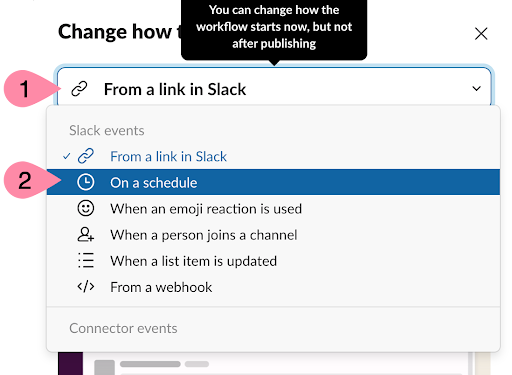
- Change the Starts on to the desired date and time, change the Frequency to Every weekday, and click Save