Build a lunch survey workflow
Ever noticed how choosing a lunch spot with coworkers seems to be an impossible task? Workflow Builder helps you automate everyday tasks and processes in Slack, even the chaos of picking your next meal! In this workshop we’ll walk through automating a lunch voting workflow so the next team lunch can be decided as painlessly as possible. You will learn how to use Workflow Builder to build a workflow where everyone gets a vote, with no coding required!
To create a new workflow, you will need to open Workflow Builder. You can open Workflow Builder using one of the following methods.
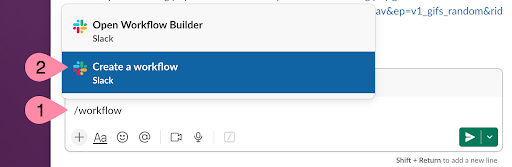
Option 1: Use the message box
In any channel, write: /workflow and select Create a new workflow
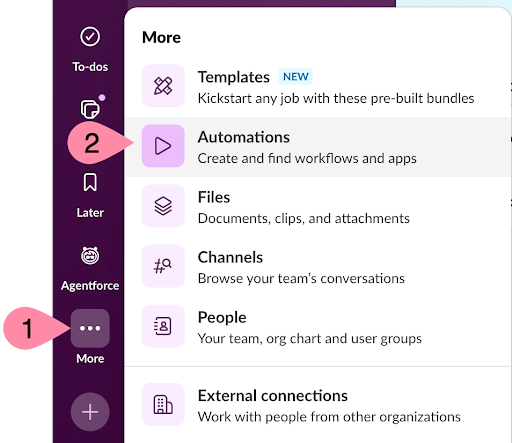
Option 2: Use the sidebar
- Navigate to the left sidebar and click More > Automations > Workflows
- Click +New Workflow > Build Workflow
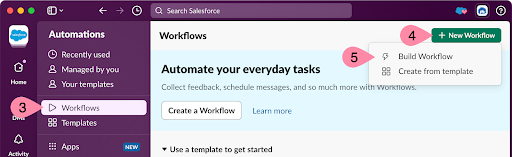
Every workflow starts with a trigger. For this workflow, it may make sense to have it scheduled for each work day at a specific time. However, for testing, it’s easier to start with a link you can copy and paste into a channel.
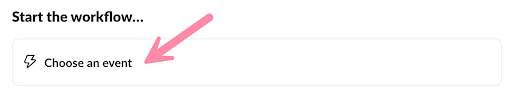
- Under Start the workflow… click Choose an event
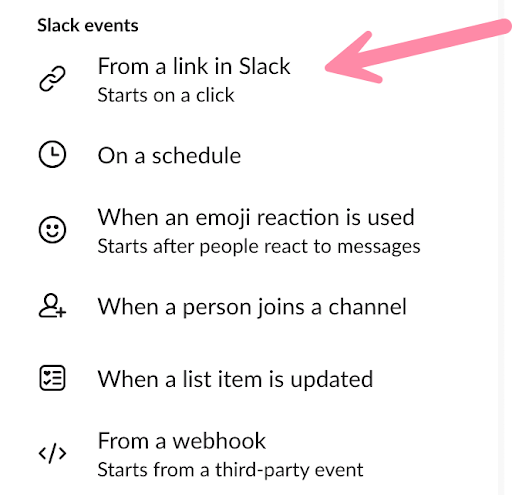
2. Click From a link in Slack
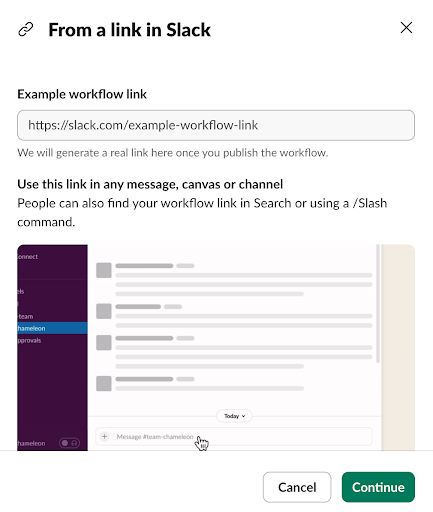
3. Click Continue
Now it’s time to add steps to your workflow. Slack has built-in steps and third-party integration steps (connectors) that can be found on the right sidebar. This step will prompt a person to fill out a form to enter several lunch suggestions.
1. Click + Add steps
2. Click Forms
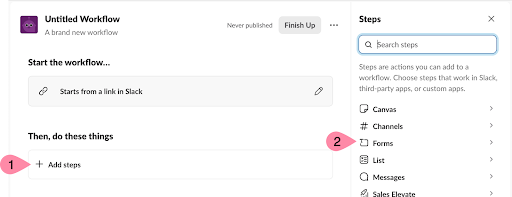
3. Click Collect info in a form
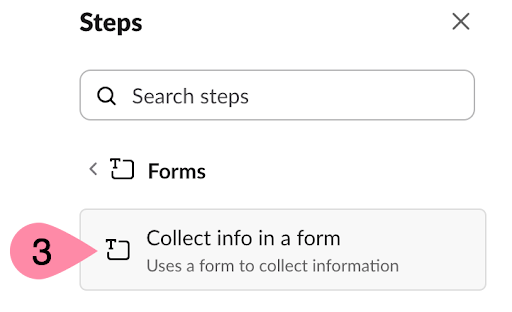
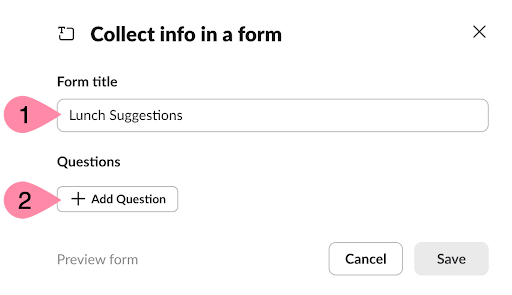
4. Configure the form:
1. Change the Form title, e.g. “Lunch Suggestions”
2. Click + Add Question
3. Enter “Option 1” for Your question, make sure Question type is set to Short answer, update the Hint to “Restaurant name”
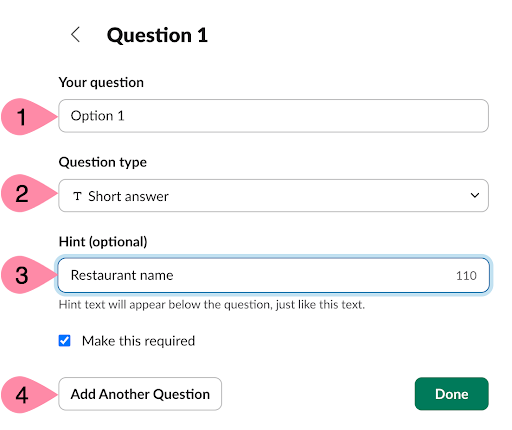
4. Click Add Another Question and repeat previous step to configure as “Option 2”
5. Click Add Another Question and repeat previous step to configure as “Option 3”
6. Click Done(Optional)
7. Click Preview form
8. Click Save
5. Click Next
6. Click Save
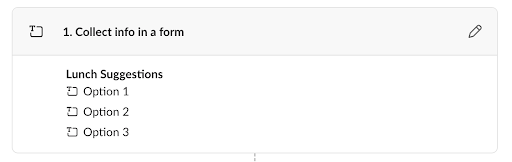
The next step in the workflow is to send the lunch options to the channel for voting.
1. From the Steps, select Messages and then click Send a message to a channel
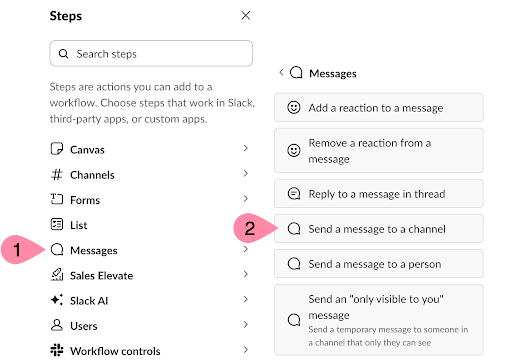
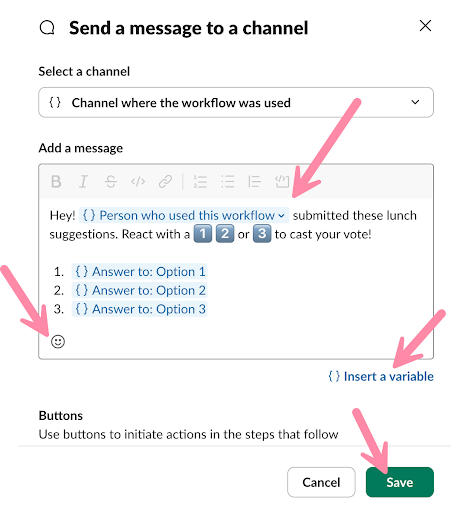
2. Under Select a channel, make sure Channel where the workflow was used is selected
3. Update Add a message text box to look like the following message and click Save
(Hint: use the emoji button and {} Insert a variable to add the voting reactions and dynamic fields)
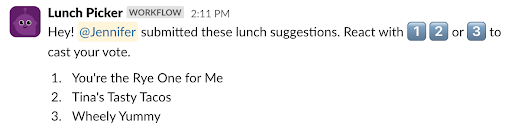
Hey! {} Person who used this workflow submitted these lunch suggestions. React with 
 or
or  to cast your vote!
1. {} Answer to: Option 1
2. {} Answer to: Option 2
3. {} Answer to: Option 3
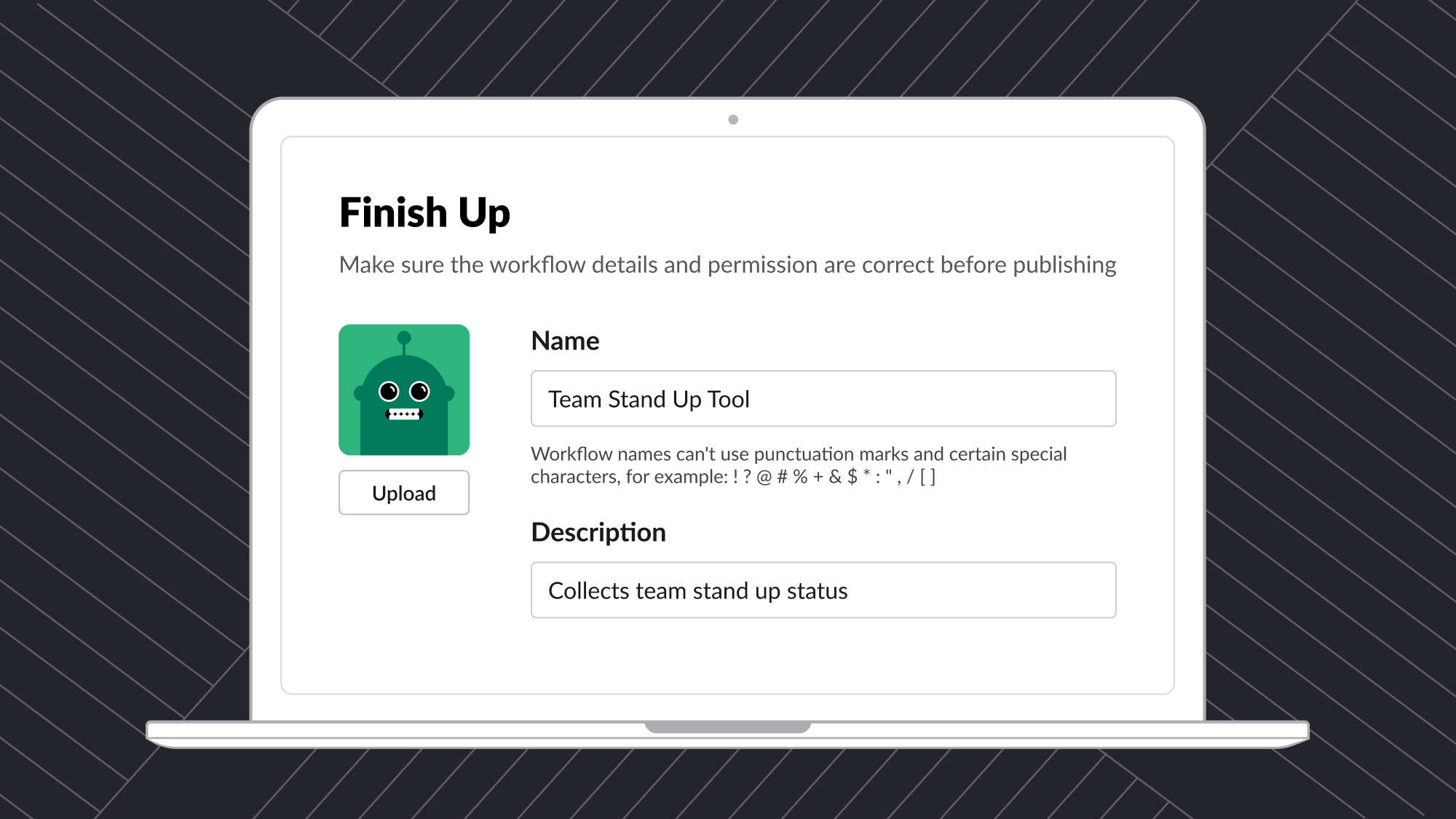
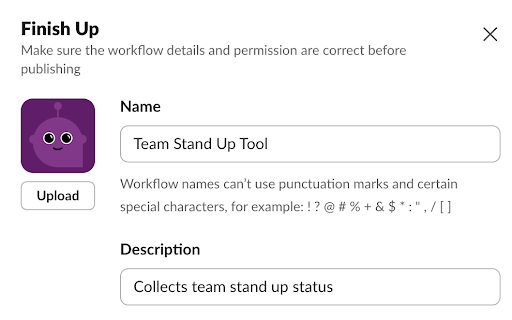
Next, we’ll make this workflow available in your workspace. But first, give it a name that’s so clear, even your coffee-deprived teammate at 8 a.m. will know exactly what it’s for.
- Click Finish Up
- Change the Name to “Team Stand Up Tool” and change the Description to, “Collects team stand up status”
- Click Publish
Your workflow is now published and ready to test!
- Click Copy Link
- Click Done
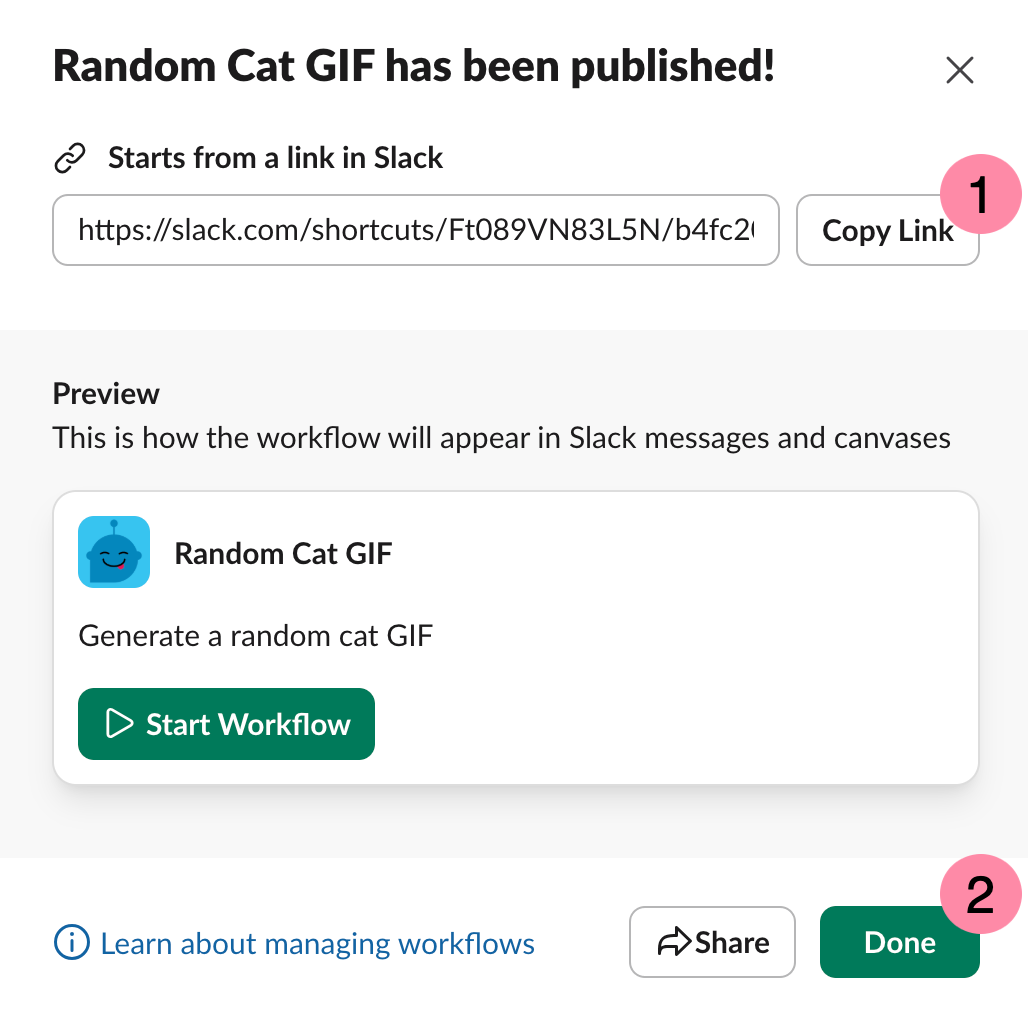
- Close the Workflow Builder
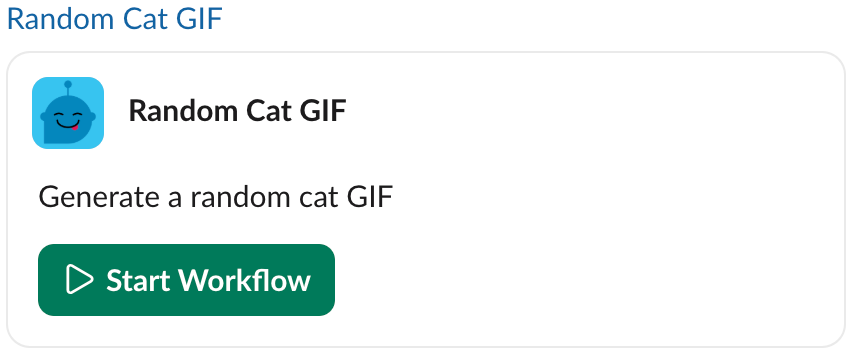
- Go to a channel in your Slack workspace, paste the link in the Message box, and press Enter
- Click Start Workflow
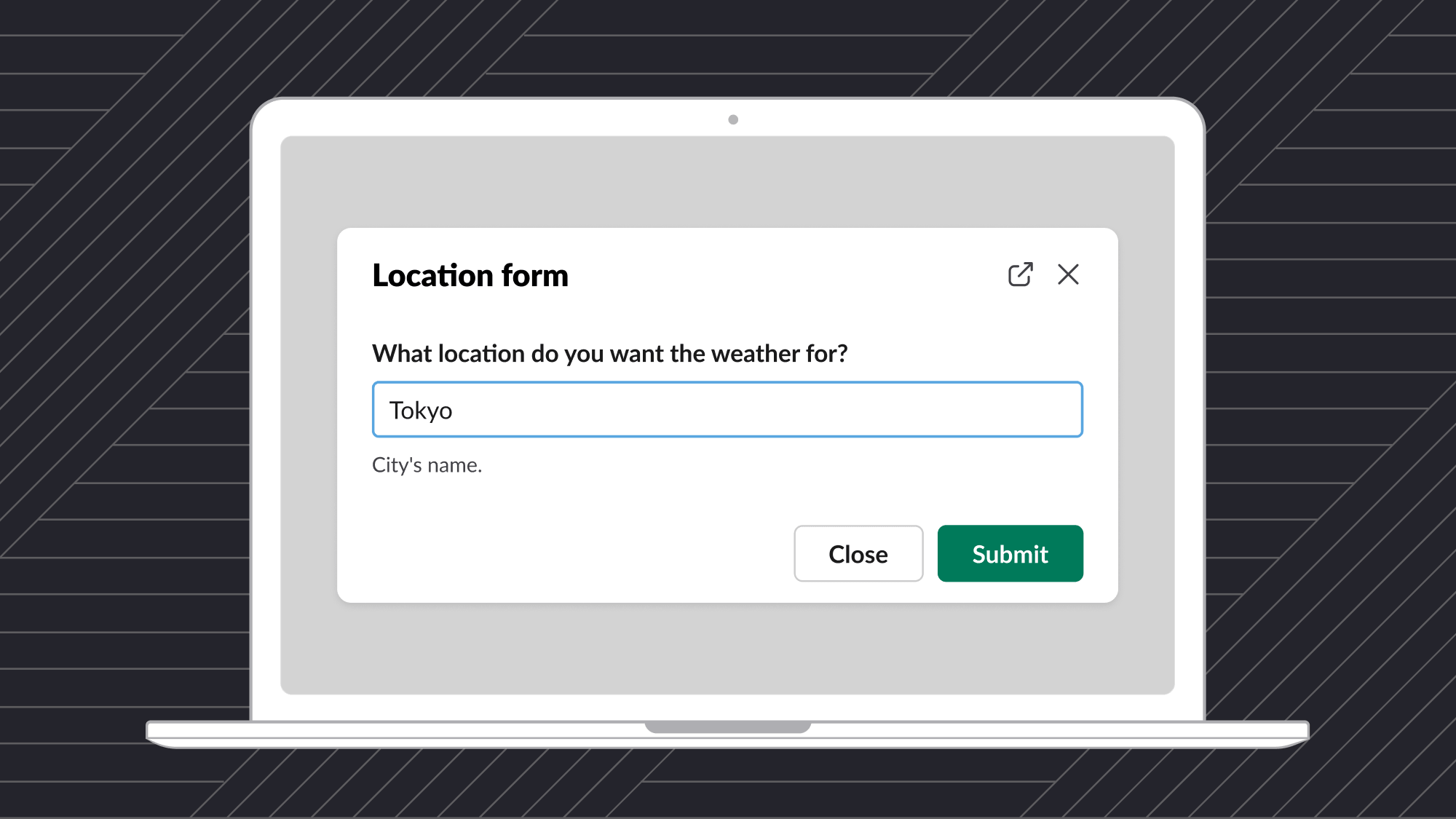
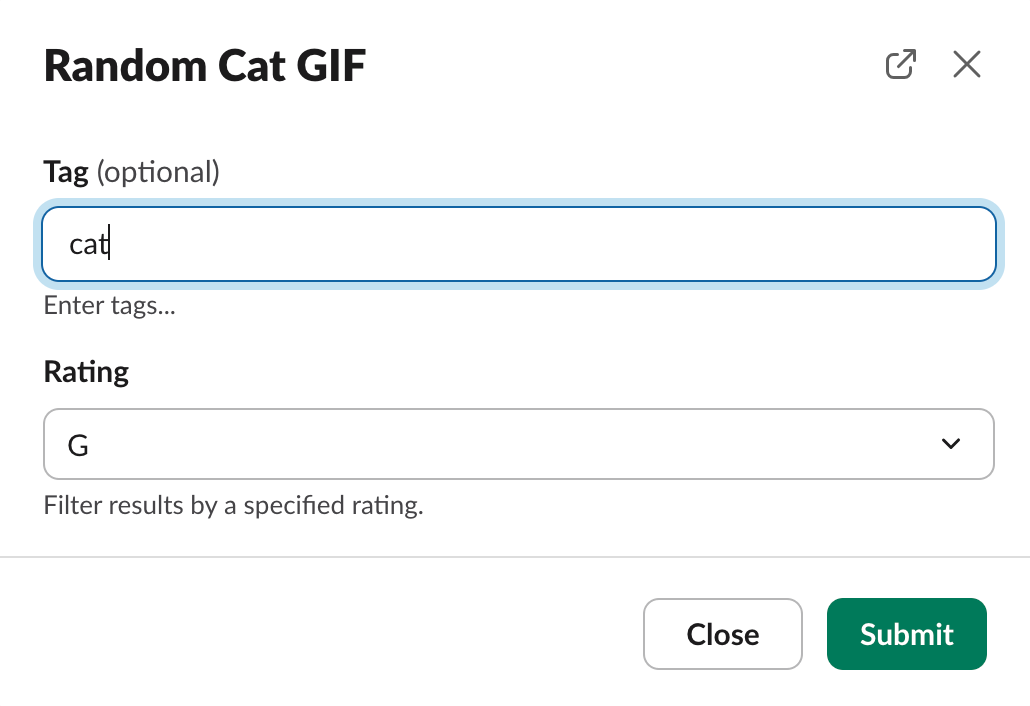
- Fill in the form and click Submit
- Enjoy your random GIF!

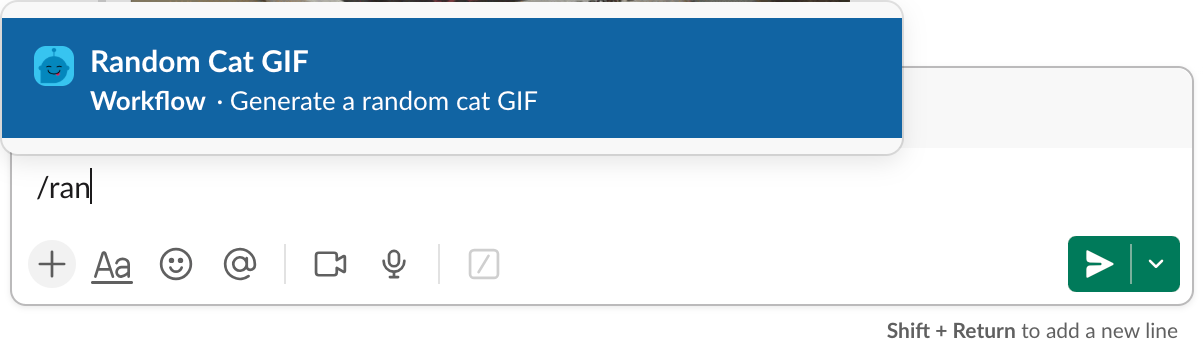
After the workflow is added to a channel, you can trigger the workflow using a slash command.
- In the Message box, start by typing a slash “/” followed by the first few letters of the name of your workflow
- Make sure the correct workflow is highlighted and press Enter